Reduce a Scanned PDF’s Size
Lower the resolution to about 150 DPI, drop JPEG quality to roughly 60 to 75, and use grayscale if colour is not needed. Those three changes usually cut a scanned PDF down dramatically while leaving ordinary printed text readable. Go lower only after checking the page at actual size.
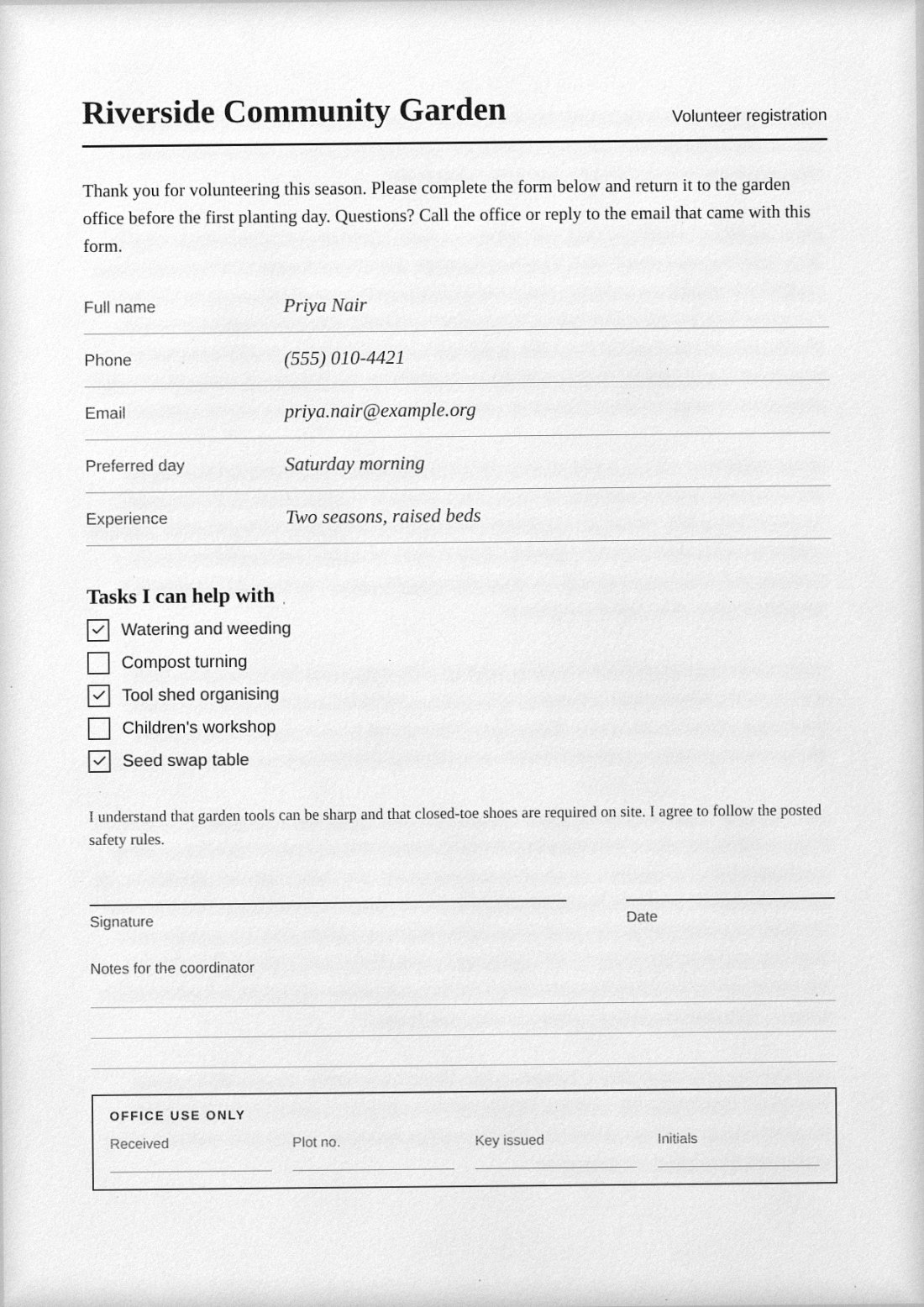
A scanned PDF is a stack of page images, so its size is set by how many pixels each page has and how hard those pixels are to compress. Text-only digital PDFs are tiny because they store letters; scans store pictures of letters. Understanding that tells you which dials matter.
What makes a scanned PDF large
- Resolution. Pixel count grows with the square of DPI. An A4 page is about 1240 by 1754 pixels at 150 DPI and about 2480 by 3508 at 300 DPI. Doubling the DPI gives four times the pixels, and the file typically grows by a similar order.
- JPEG quality. A lower setting throws away more fine detail, so the file shrinks. Very low settings produce blocky halos around letters.
- Colour. A colour page carries more information than a gray one. A white page scanned in colour is often several times larger than the same page in grayscale.
- Noise and texture. Random speckle, paper grain and dust are expensive to compress because they are not predictable. A noisy scan is a bigger file than a clean one at the same DPI and quality.
- Page count. Sizes add up linearly, so a 40-page packet at 300 DPI in colour gets large quickly.
Starting points by purpose
| Purpose | DPI | JPEG quality | Colour |
|---|---|---|---|
| Email attachment, plain text forms | 120 to 150 | 60 to 72 | Grayscale |
| Upload portal with a small limit | 100 to 130 | 50 to 65 | Grayscale |
| Forms with fine print or stamps | 200 | 70 to 80 | As needed |
| Archive copy, photos or detailed drawings | 250 to 300 | 80 to 90 | Colour |
These are starting points, not guarantees. The right values depend on the font size and what the recipient must read.
Steps in ScanKit
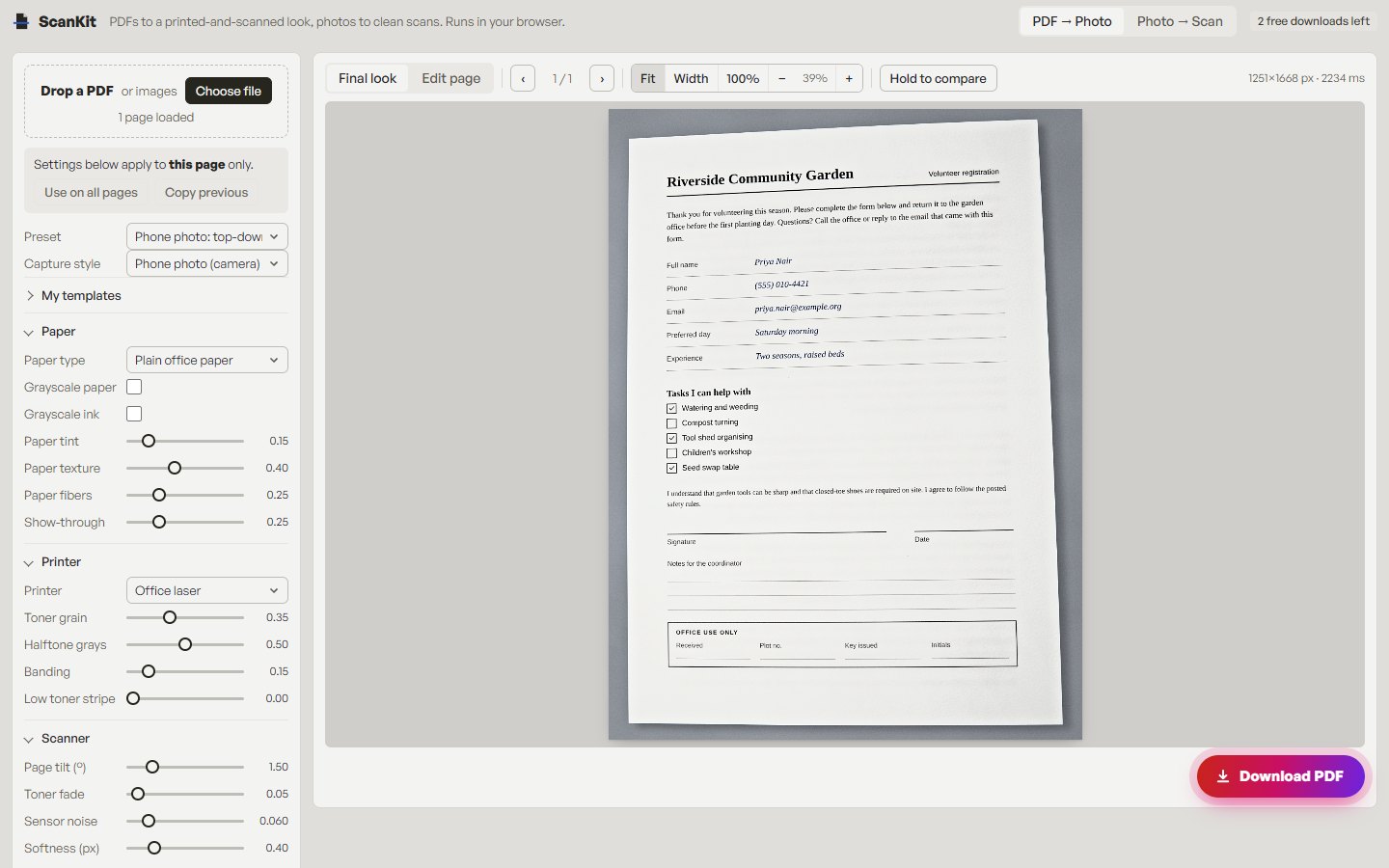
If you have a digital PDF and want a compact scanned-look copy, set the size controls before exporting. Everything runs in your browser.
- Load the file. Open ScanKit and on the PDF → Photo tab choose Choose file.
- Pick a lean preset. The Preset menu includes Subtle (150 DPI, quality 82), Photocopy (130 DPI, quality 55, grayscale) and Fax / worn (100 DPI, quality 38, grayscale). Photocopy is a sensible base for small files.
- Open Output & variation. Set Resolution (DPI), which runs from 72 to 300, and JPEG quality, which runs from 20 to 95. The default is 150 DPI and 72.
- Go grayscale if colour does not matter. In the Paper group, tick Grayscale paper, and Grayscale ink if you added a signature or handwriting.
- Calm the texture. Reduce Sensor noise and Dust specks in the Scanner group, and keep paper texture light. Less random detail compresses better.
- Check, then export. Use the 100% zoom button (actual pixels) to read the smallest text, then Download PDF. Use Use on all pages to apply the same settings throughout.
If you only have a heavy scan
ScanKit is not a general PDF compressor: it does not re-compress an existing scanned file as a dedicated tool would. What it can do is rebuild pages from a PDF or image at the DPI and quality you choose. If the source is already a low-resolution scan, upscaling will not help; start from the best source you have. Other approaches include re-scanning at 150 DPI in grayscale, or splitting the packet into several smaller files if a portal limits size per upload.
Check readability before you send
- View the page at 100 percent and read the smallest text without squinting.
- Look at digits, which are easy to misread when blurred: 3 and 8, 1 and 7, 5 and 6.
- Check signatures and stamps; thin strokes break first at low quality.
- If a number matters, such as an amount or a date, zoom in on it specifically.
Honest limits
Reducing size costs detail. Small print can become illegible, and a heavily compressed page may be rejected by a recipient who needs a clear copy. Scanned-look output is image-based, so text is not selectable or searchable. If you need small and searchable, a digital PDF is the better format. ScanKit gives you two free PDF downloads a day (up to three a week from one internet connection); unlimited downloads are $4.99 / month via PayPal, renewing monthly until cancelled in PayPal.
Responsible use. Only process documents that are yours to use, with your own signature or one you are authorised to apply, and never change a document to misstate its contents. See the acceptable use policy.
Frequently asked questions
What DPI is enough for a scanned document?
For ordinary printed text, 150 DPI is a common balance of readability and size. Use 200 to 300 for small print, stamps or detailed images.
Does lowering JPEG quality reduce file size?
Yes. Lower quality discards more detail, which shrinks the file. Below about 50, text edges often show visible blocky artefacts.
Is grayscale smaller than colour?
Usually, yes. A page without colour information compresses better, and it is the easiest saving for black-and-white forms.
Why is my scanned PDF so big?
Most often because of high DPI, colour, high JPEG quality, or noise and texture in the scan. Check each in that order.
Will a smaller scanned PDF still be searchable?
Only if it has an OCR text layer. Scanned-look files made by ScanKit are image-based and not searchable at any size.
Make a smaller scanned-look PDF
Set DPI, quality and grayscale, preview the result, and download. Two PDFs a day are free.
See also: scanned PDF vs digital PDF, PDF to scanned PDF and turn a photo of a document into a scan.