Turn a Document Photo into a Scan
To turn a photo of a document into a scan, crop the photo to the page corners, correct the perspective, then apply a clean-up filter like Magic color. In ScanKit, the Photo to Scan tab does this in your browser, and you can export the pages as one PDF.
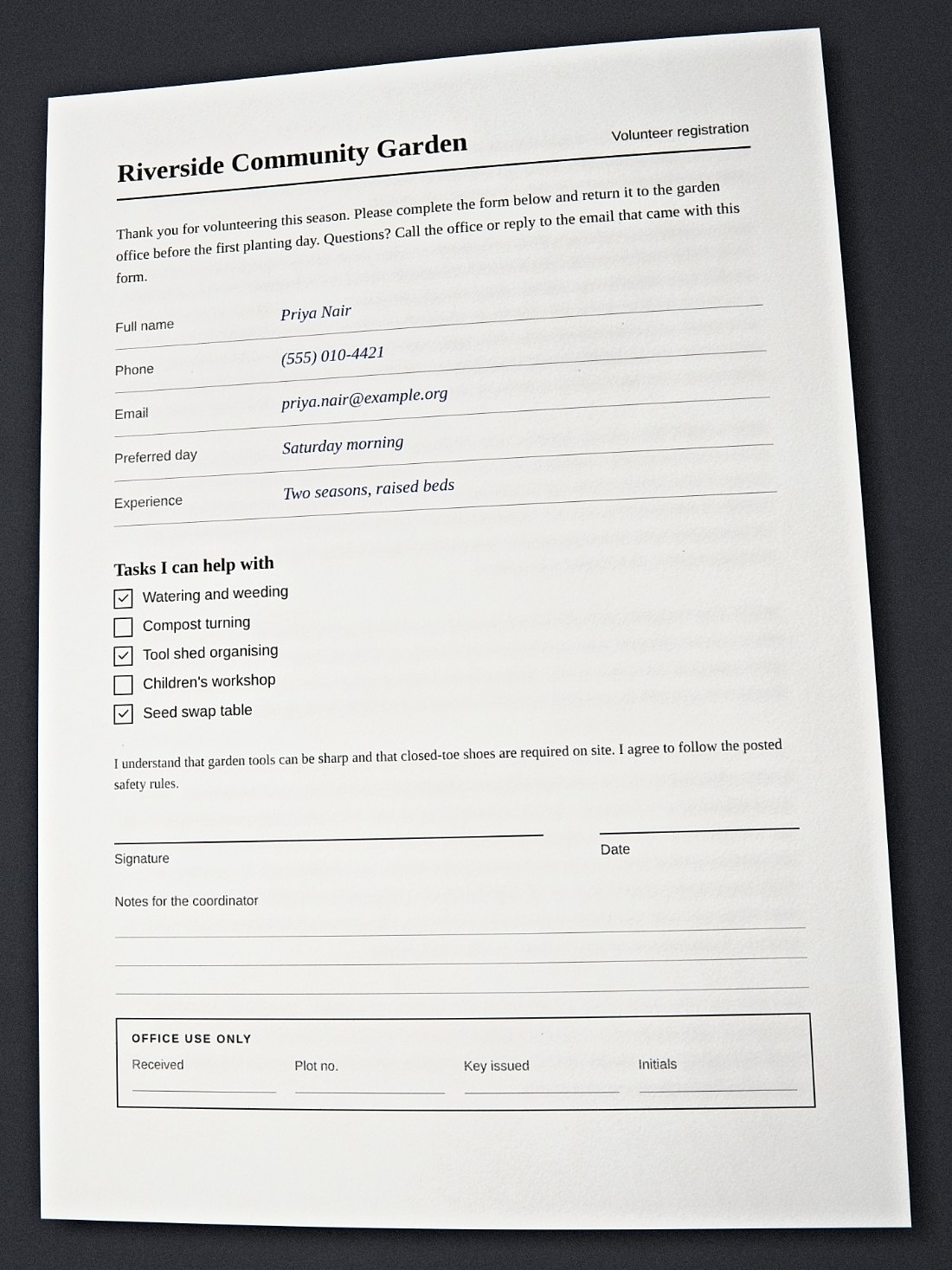
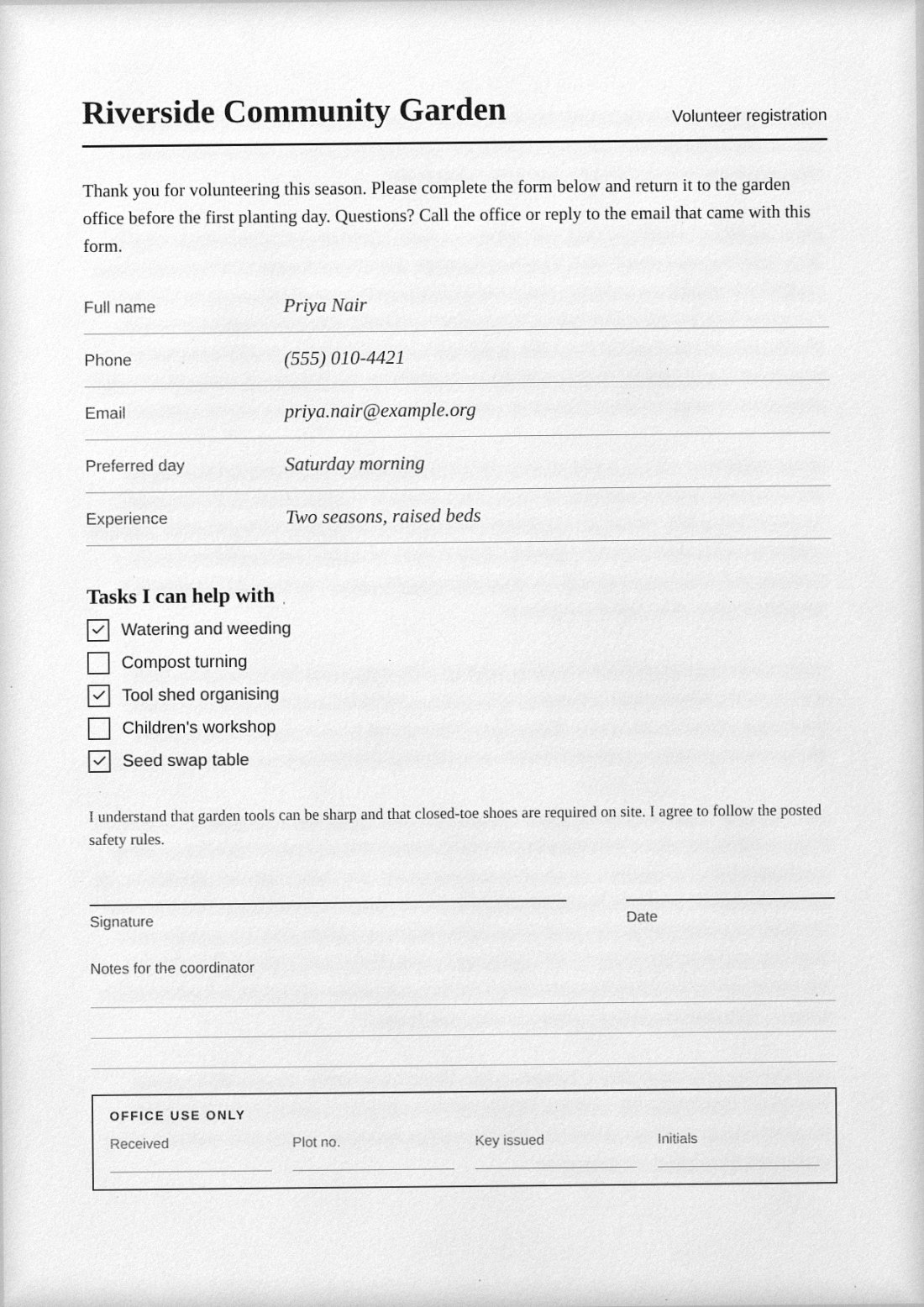
A phone photo is not yet a scan
A snapshot of a page has a tilted outline, a desk in the background, shadows across the paper and a yellowish cast from the lamp. A document scan is a flat, evenly lit rectangle with a bright background. Turning one into the other needs three things: cropping to the paper’s edges, correcting the perspective so the page becomes a rectangle again, and evening out the colour and contrast. The Photo → Scan tab in ScanKit handles all three, in your browser.
Take a better photo first
Software can straighten a page, but it cannot recover detail the camera never captured. A minute spent on the photo saves a lot of fiddling later.
- Light. Use daylight from a window or an even overhead lamp. Avoid a single desk lamp at a low angle, which throws a gradient across the sheet.
- Your own shadow. Hold the phone so neither your arm nor the phone blocks the light. A shadow with a hard edge is much harder to remove than a soft one.
- Angle. Shoot from straight above. A slight tilt is fine because the app corrects perspective, but steep angles squeeze the far end of the page and cost you resolution there.
- Background. Put the page on a surface that contrasts with it: a dark desk under white paper makes edge detection far more reliable.
- Fill the frame. Leave a thin margin of background around the sheet rather than shooting from far away. More pixels on the page means sharper text.
- Flatten the page. Smooth out creases and curl. Books and stapled corners bend text, and a flat crop cannot fully undo that.
Steps in ScanKit
- Open the Photo tab. In the app, select Photo → Scan.
- Add the photo. Press Choose photos to pick images, drop them on the area, or press Take photo to use the camera on a phone. You can queue several photos and handle them one after another.
- Step 1, Crop. The app tries to find the paper edges. If the outline is off, press Auto-detect again, or drag each corner onto the real corner of the sheet. Full image uses the whole frame when the photo is already a tight shot of the page.
- Step 2, Enhance. Choose a filter chip: Original, Magic color (the default), Grayscale or Black & white. Then nudge Brightness and Contrast until the background is clean and the text is solid.
- Set the page shape. Page shape offers Auto (detect proportions), A4, US Letter and As captured. Choose A4 or Letter if you know the paper size. Rotate with the Rotate buttons if the page came out sideways.
- Add the page. Press Add page, or Skip to drop that photo. Repeat for the rest, then use Download PDF in the Document tray.
Picking a filter
| Filter | Best for | Trade-off |
|---|---|---|
| Original | Photos or pages with important colour | Keeps shadows and colour cast |
| Magic color | Everyday colour documents | May lighten very pale stamps or highlights |
| Grayscale | Text with some shading, smaller files | Colour information is dropped |
| Black & white | Plain text and forms | Faint pencil, stamps and photos can disappear |
Resolution, size and skew
The result can only be as sharp as the photo. A recent phone camera, held steady in good light, captures an A4 page at well above 150 DPI-equivalent, which is plenty for printed text. Handwriting in pencil, small footnotes and receipts with thermal print deserve a closer look at 100 percent zoom before you commit.
Pages added from this tab are placed at A4 width in the PDF, with the height following the page proportions you chose. Colour pages produce larger files than grayscale or black and white, so if you are close to an upload limit, switch the filter before anything else.
Skew is not really a problem here, since the perspective correction squares the page. What does hurt is a badly placed corner: a slightly off corner will leave a wedge of desk at an edge or trim away part of the margin. Zoom in and drag the corner by small steps.
What it cannot do
- It will not make blurry text sharp, or fill in text hidden by glare.
- The PDF it creates holds images, not searchable text.
- Strong curl, as in the gutter of a thick book, can only be partly straightened by a four-corner crop.
More guides
If the document you photographed was a printed form that you now need to sign and return, signing a PDF and returning it as a scan covers the full flow. Starting from a digital file instead? Try PDF to scanned PDF online.
You get two free PDF downloads a day (up to three a week from one internet connection). For unlimited downloads, $4.99 / month through PayPal, renewing monthly until you cancel in PayPal.
Frequently asked questions
How do I turn a photo of a document into a scan?
In ScanKit, open the Photo to Scan tab, add your photo, drag the crop corners onto the page edges, choose an Enhance filter such as Magic color, press Add page and download the PDF.
Can I scan a document with my phone camera and no scanner app?
Yes. Press Take photo to use your phone camera, or choose existing photos. The page is cropped, straightened and cleaned up in your browser.
Which filter is best for text documents?
Magic color suits most colour pages. Black and white gives the cleanest result for plain printed text, but it can erase faint pencil, stamps or photos.
Does it correct a page photographed at an angle?
Yes. Once the four corners sit on the edges of the page, the perspective is corrected so the page becomes a flat rectangle. Very steep angles still lose detail at the far end.
Are my photos uploaded?
No. Cropping and enhancement run in your browser, so the images stay on your device.