PDF to Scanned PDF, the Quick Way
You can convert a PDF to a scanned PDF online by loading it in ScanKit, choosing a preset like Subtle, applying it to all pages, and downloading the result. The processing happens in your browser, so the file is not uploaded. Two downloads a day are free; the output is an image-only PDF.
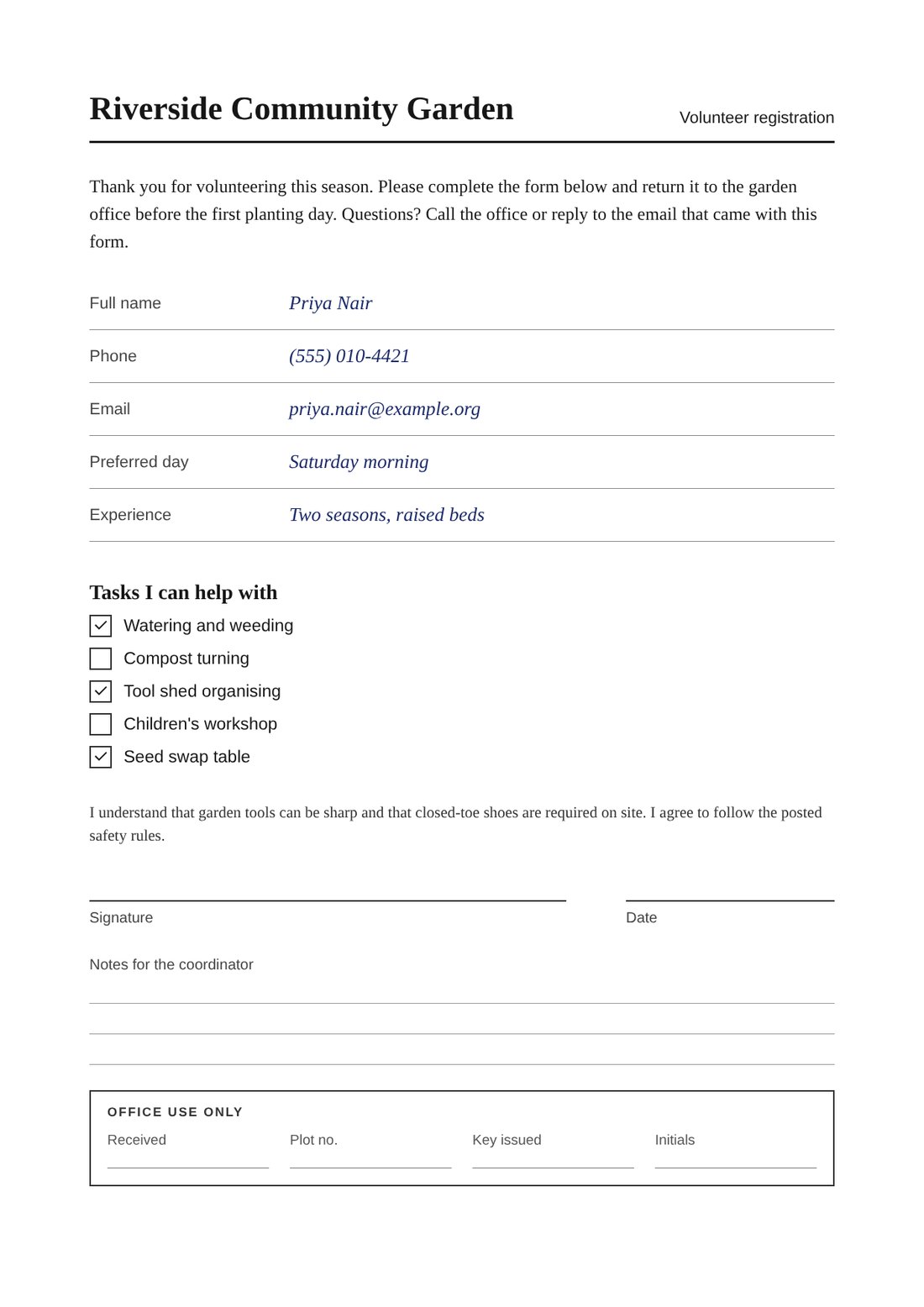
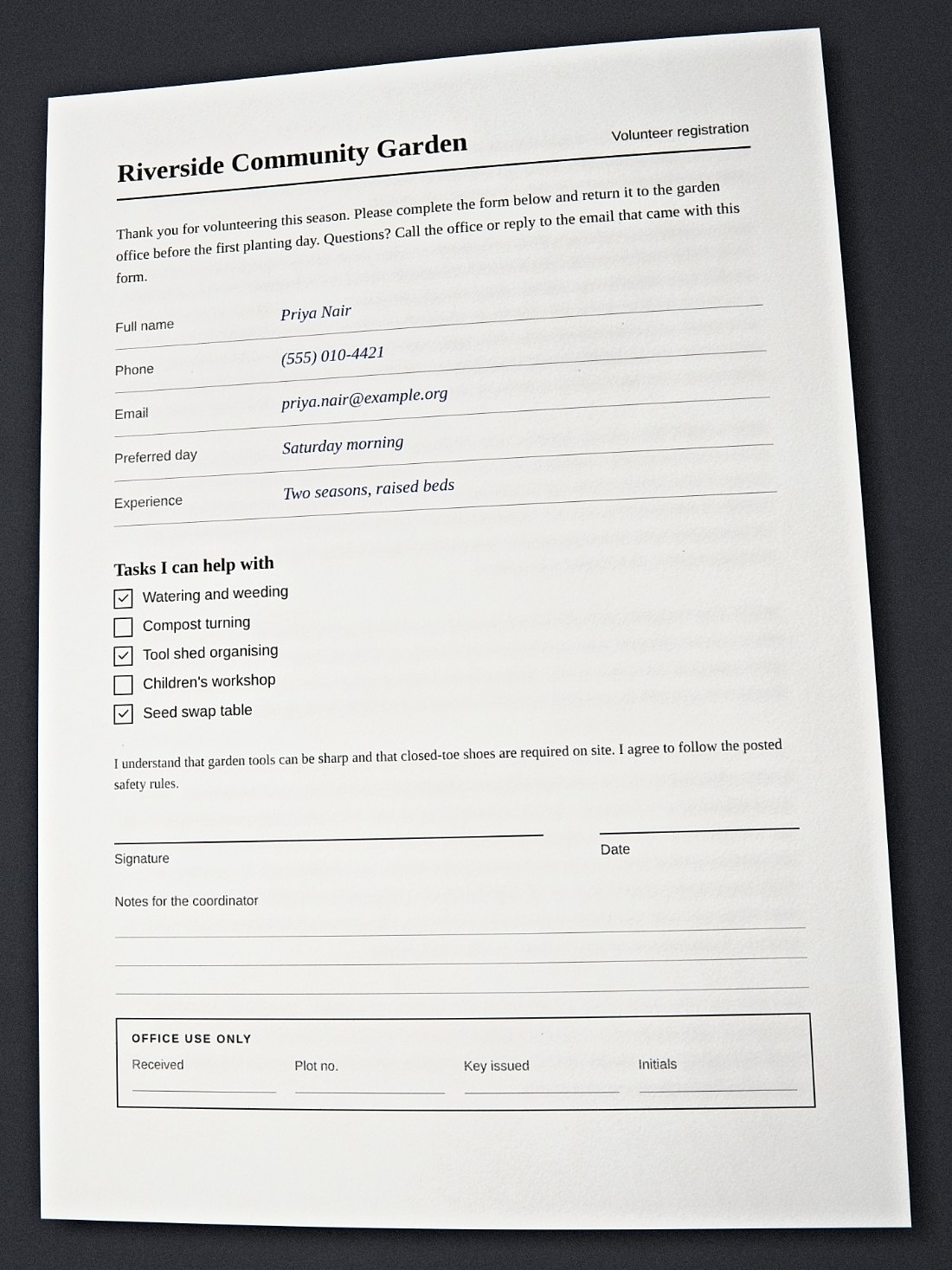
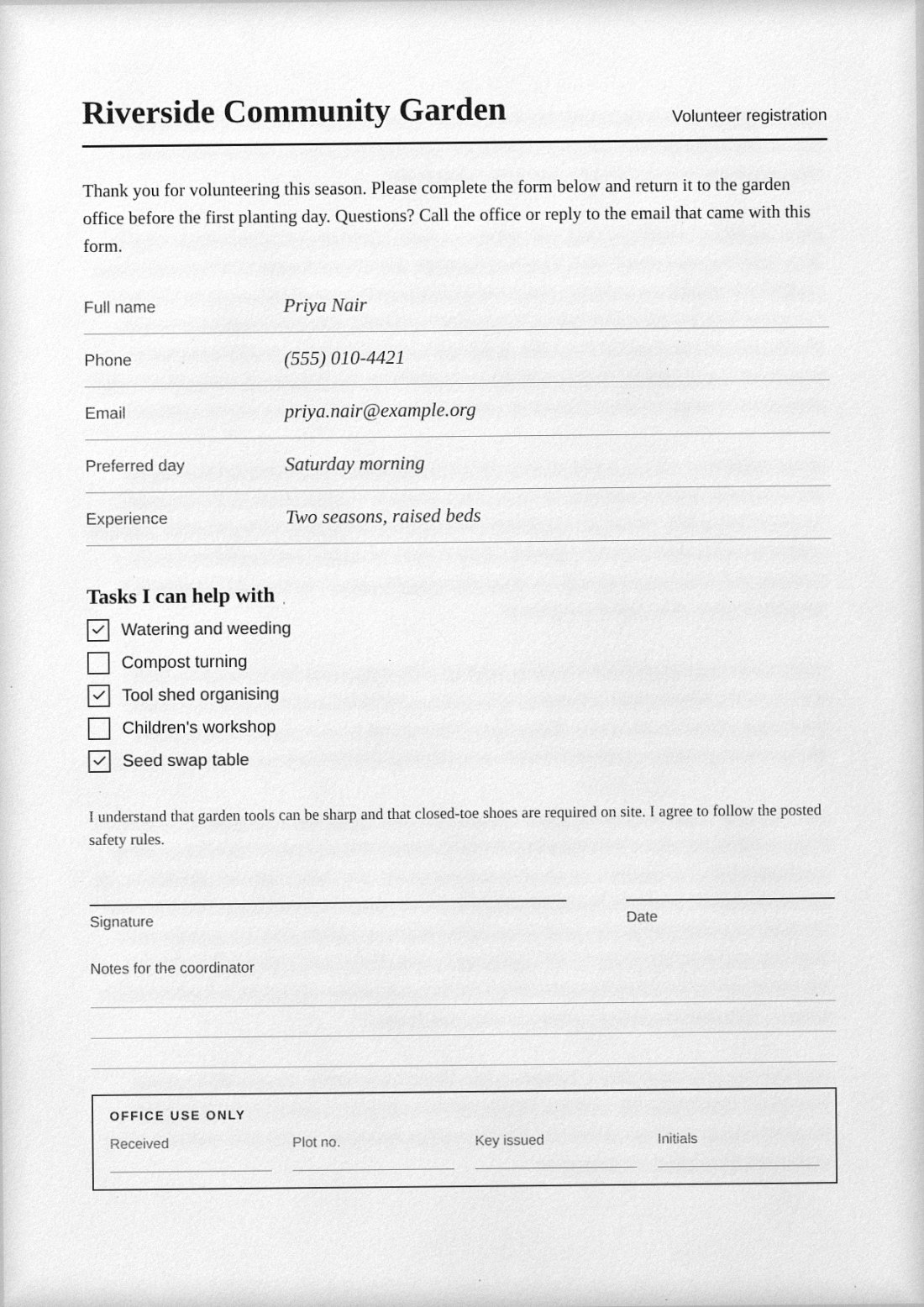
Why people convert a PDF to a scanned PDF
Most of the time the reason is mundane. A school, landlord or office asks for a “scanned copy” of a form you filled in on your computer. You do not own a scanner, the printer is out of toner, and the deadline is tonight. The traditional answer is to print the file, sign it, and scan it back in. That works, but it costs paper and time, and it only makes sense if the form really needs a wet signature.
This guide covers the digital shortcut: take the PDF you already have and give it the look of a document that went through a scanner, without leaving the browser.
The fast route in ScanKit
- Open the app and make sure the PDF → Photo tab is selected.
- Add your PDF. Drop it on the drop area or use Choose file. A strip of page thumbnails appears so you can move between pages.
- Select a preset. For a form that just needs to look like a normal office scan, choose Subtle. Leave Capture style on Flatbed scan.
- Apply to all pages. The sidebar says whether settings apply to the current page only. Press Use on all pages so a multi-page document is consistent.
- Download. Check the page strip under the preview, then press Download PDF. Every page goes into one PDF.
You get two free PDF downloads a day (up to three a week from one internet connection). For unlimited downloads, $4.99 / month through PayPal, renewing monthly until you cancel in PayPal. If you do this often, see the section on templates below.
Online converter or desktop software?
| Browser-based (ScanKit) | Print, sign, scan | Upload-based web converters | |
|---|---|---|---|
| Where the file goes | Stays in your browser | Stays with you | Sent to a server (check each site) |
| Equipment needed | A browser | Printer and scanner | A browser |
| Time for a few pages | Minutes | Longer, plus trips to the printer | Minutes |
| Control over the look | Paper, printer, scanner, folds | Whatever your scanner does | Usually a single filter |
| Real physical page | No, simulated | Yes | No, simulated |
The honest summary: if the other party genuinely needs a physical sheet that you handled, print and scan it. If they just want a scanned-style file of your own digital document, a browser tool is quicker.
What stays on your device
ScanKit does its processing in your browser. Your PDF is read from your disk into the page, rendered there, and the result is built there. The file is not sent to a server for processing. That matters for forms with addresses, account details or anything else you would rather not hand to a stranger’s upload box. See the privacy policy for what the site itself does collect, such as payment details handled by PayPal.
Handling a long or recurring document
- Different treatment per page. Settings apply to the current page unless you press Use on all pages. Copy previous pulls over the settings from the page before.
- Saved templates. Open My templates, type a name, and press Save. The next time you load a similar file, apply that template from the Preset menu. Export and Import move templates to a
.jsonfile for backup. - Mixed content. If a page has something that should not be altered, such as a coloured logo you want to stay crisp, lower Paper tint and Softness rather than relying on a heavy preset.
- Size. A long document at 300 DPI can get large. Every page is a JPEG, so try 150 to 200 DPI first and raise it only if small print is hard to read.
Checks before you send it
- Zoom to 100 percent and read the smallest text, including dates and reference numbers.
- Scroll through every page. Seeds differ per page, so a stray mark may land on a key field.
- Look at the file name and size. A 40-page file at 20 MB may bounce from an upload form with a limit.
- Re-read the submission instructions. Some forms need a text-searchable PDF, which this output is not. Others explicitly require an original or notarised copy, which no software can replace.
Limits you should know about
The result is an image-only PDF. It has no selectable text, and it cannot be edited as text afterwards, so keep the original. The scanned look is simulated; it is not evidence that a document passed through a scanner. Being clear about that is part of using the tool well.
Related guides
Want finer control over grain, tilt and toner? See how to make a PDF look scanned. If your question is whether you should be printing at all, read about alternatives to print, sign and scan.
Frequently asked questions
How do I convert a PDF to a scanned PDF online?
Open ScanKit, drop your PDF on the PDF to Photo tab, pick a preset such as Subtle, press Use on all pages, then Download PDF. It runs in your browser.
Is it free to turn a PDF into a scanned PDF?
You get two free PDF downloads a day (up to three a week from one internet connection). Unlimited downloads cost $4.99 / month through PayPal, renewing monthly until you cancel in PayPal.
Is my PDF uploaded to a server?
No. The conversion is done in your browser, so the file is read and processed on your own device.
Will the scanned PDF be searchable?
No. Each page is saved as a single image, so there is no text layer. Keep your original if you need searchable or copyable text.
Can I do many pages at once?
Yes. Load the whole PDF, press Use on all pages, then Download PDF. Each page gets its own small random variation, so pages are not identical copies.