Sign Without Printing or Scanning
You can skip the printer entirely: open the PDF, place an image of your own signature where it belongs, and export a PDF that looks like a flatbed scan. The whole thing happens in your browser, and it takes a few minutes instead of a trip to the printer.
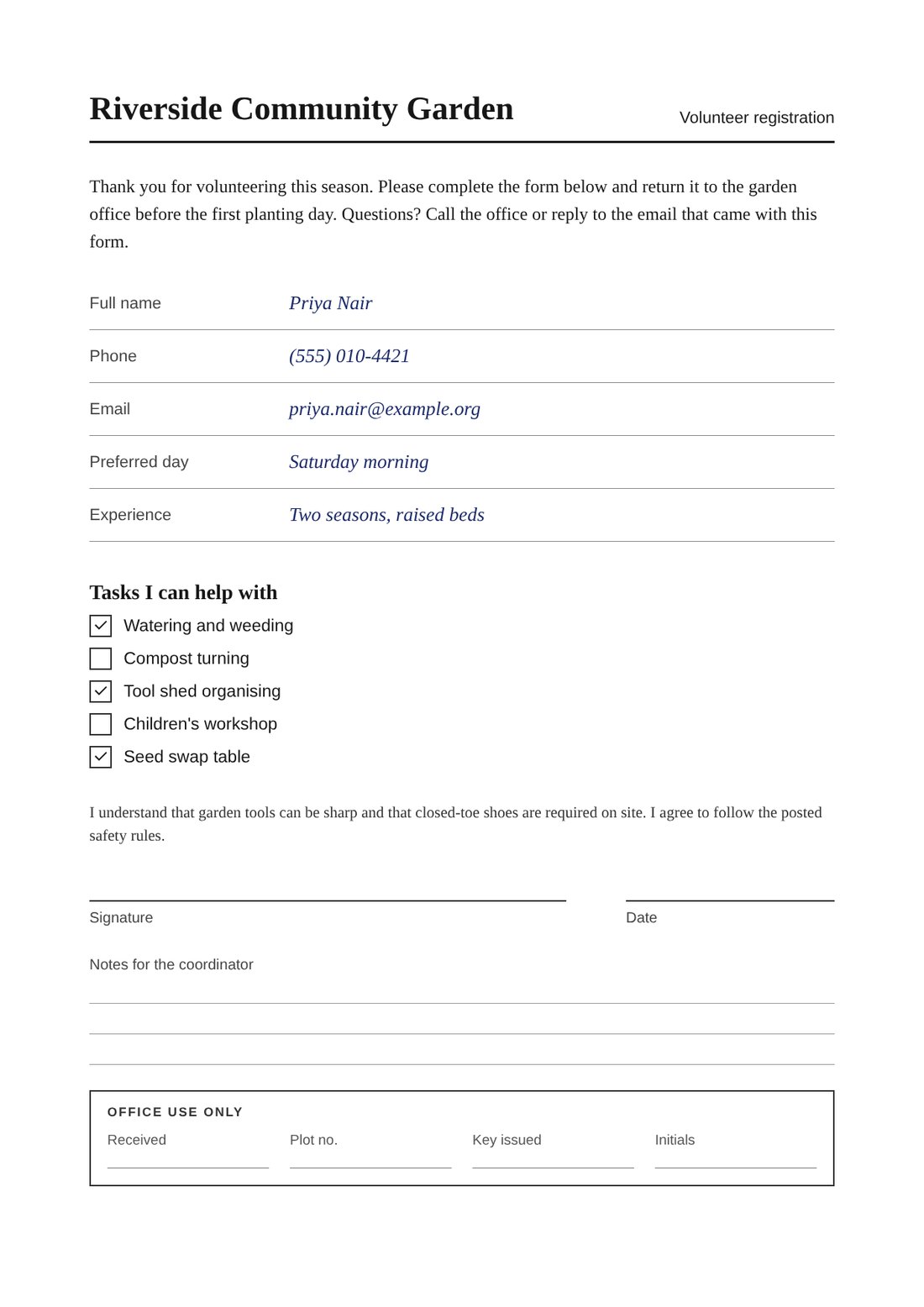
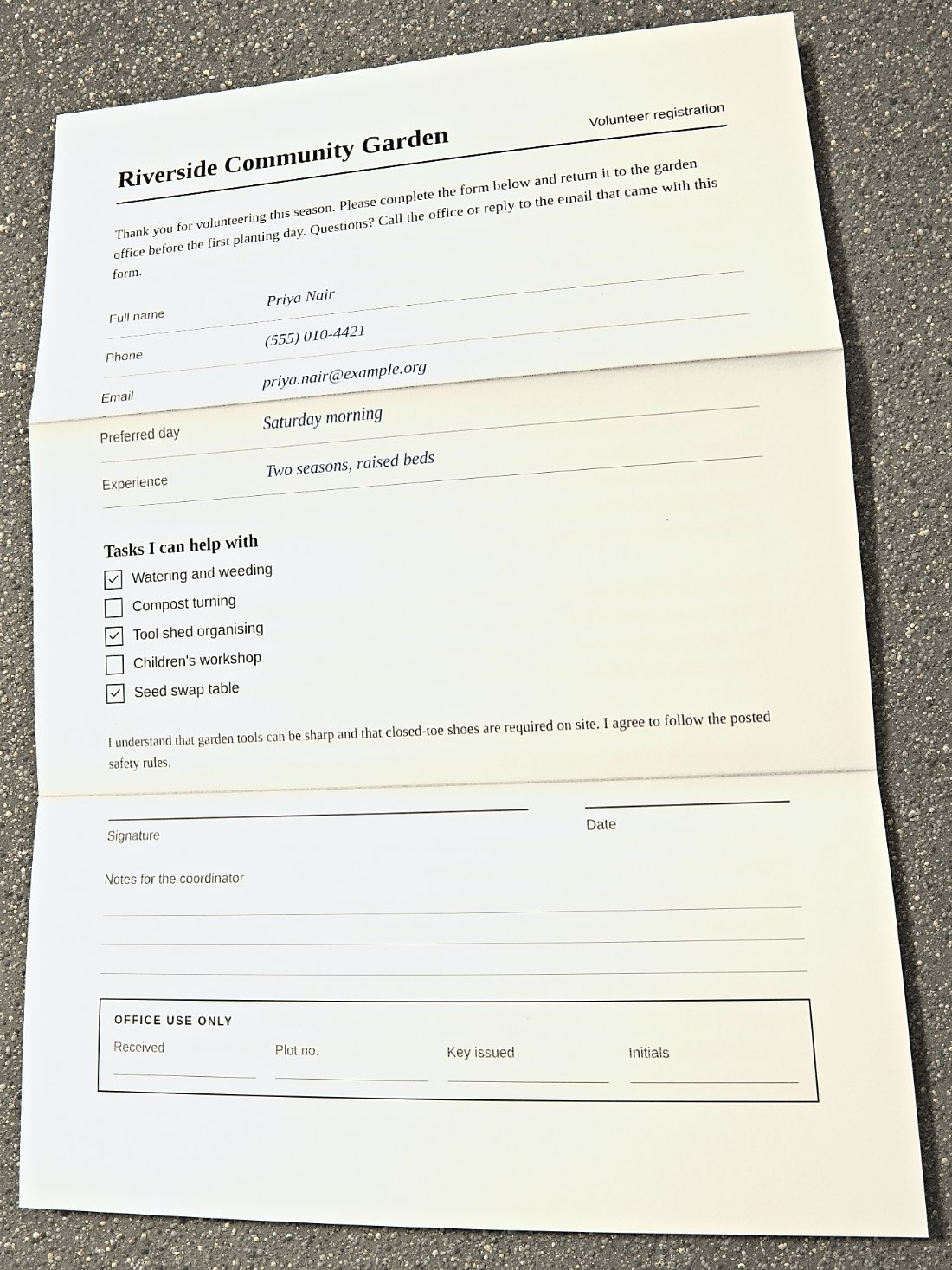
That is the short answer, and it comes with a caveat that matters: the result is a PDF with a picture of your signature on it. It is not a certified electronic signature, and some recipients will not accept it. The sections below cover how to do it, when it is enough, and when you should use a proper e-signature service instead.
Why the print, sign, scan routine exists
Many offices, schools, landlords and agencies still ask for a form to be "signed and returned as a scan". Behind that request is usually one of two things: they want your handwritten mark on the page, or their intake process only handles image-style PDFs. If you are at a laptop with no printer, the old routine means finding a printer, wasting paper, signing, and then photographing or scanning the sheet again.
When the recipient simply wants your signature on the page, you can do the same job digitally. The page never has to exist on paper.
The steps in ScanKit
- Open the app and the right tab. Go to the ScanKit app and stay on the PDF → Photo tab. Choose Choose file or drop your PDF onto the page. Nothing is uploaded; the file is read inside your browser.
- Switch to Edit page. In the preview area, pick the Edit page tab. This is where signatures and handwriting are placed on the clean page, before the scanned look is applied on top.
- Create or bring your signature. Click Add signature or handwriting to open the Ink Studio. Under Signature you can Draw with a mouse, finger or pen, Type your name in a script style, or Upload a photo of a signature you wrote on white paper. The background is removed for you, and Advanced clean-up handles shadows and ruled lines.
- Place it. Press Place on page, then drag the signature onto the signature line. Use the Size, Rotation and Opacity sliders to fit it. A signature that crosses its line slightly, as ink does on paper, looks more natural than one floating above it.
- Fill in anything else. The same studio has a Handwriting tab for dates and short entries, plus check, cross and circle marks for boxes. Use these for your own entries only.
- Choose the look. Back on the Final look tab, set Capture style to Flatbed scan and pick a preset such as Subtle for a light touch. Use Hold to compare to check the signature is still crisp.
- Export. Click Download PDF. Every page goes into one file.

When this works, and when it does not
| Situation | Digital-signature approach |
|---|---|
| A school form, club waiver or internal HR page that wants a signed copy back by email | Usually fine. Ask if unsure. |
| A recipient who states "scan only" because their system rejects text-layer PDFs | Works well, since the export is image-based. |
| A contract that must go through a named e-signature platform | Use that platform. A pasted image will not satisfy it. |
| Documents needing a witness, notary or wet-ink original | Not a substitute. Follow the stated process. |
| Documents where an audit trail or identity verification is required | Use a certified e-signature service. |
A signature image is not a certified e-signature
A certified or platform-based e-signature records who signed, when, and often how they were verified, and it can seal the document so later changes are detectable. A scanned-look PDF with a signature image does none of that. It is simply a picture of a signature on a page. Some recipients accept it for routine paperwork; others, and some jurisdictions or document types, require a specific e-signature service or an original signature. ScanKit does not give legal advice, so if the stakes are high, ask the recipient what they accept before you send anything.
Practical tips for a clean result
- Sign in dark ink on white paper if you are uploading a photo of your signature, with even light and no shadow across the line.
- Keep the default Resolution (DPI) of 150 for forms. Raise it toward 200 or 300 if the page has small print; lower values make a smaller file.
- Leave JPEG quality around 70 to 80. Under about 50, thin signature strokes start to break up.
- Turn on Grayscale paper and Grayscale ink if the recipient expects a black-and-white scan; it also shrinks the file.
- Save the signature to the library so you can reuse it on later forms.
Honest limits
The exported PDF is made of page images. Text on it cannot be selected, copied or searched, and screen readers cannot read it. Keep your original digital file for your records, and send the scanned-look copy only where a scanned copy is what was asked for. Two PDF downloads a day are free (up to three a week from one internet connection); unlimited downloads are $4.99 / month through PayPal, renewing monthly until you cancel in PayPal.
Responsible use. Apply only your own signature, or one you are authorised to apply, and do not misrepresent where a document came from or what it says. See the acceptable use policy.
Frequently asked questions
Can I sign a PDF without printing it at all?
Yes. Add an image of your own signature to the PDF in your browser and export it. Whether the recipient accepts that depends on them, so check if the form is important.
Is a pasted signature image legally binding?
That varies by document type and jurisdiction, and this site cannot give legal advice. An image alone is not a certified e-signature, and some recipients require a specific service.
Does the file leave my computer?
No. ScanKit renders the PDF in your browser and does not upload your files.
Why make it look scanned at all?
Because the request was for a scanned copy. A scanned-look export also flattens the page into an image, which some intake systems handle more predictably.
Will the signed PDF be searchable?
No. Scanned-look output is image-based, so the text cannot be selected or searched.
Try it on your own form
Open a PDF, add your signature, and export. Two downloads a day are free.
Related guides: sign a PDF and send it back as a scan, convert a PDF to a scanned-looking PDF and scanned PDF vs digital PDF.