Sign a PDF, Send It as a Scan
Open the PDF in ScanKit, place your own signature on the signature line, choose a flatbed-scan look, and download. You get a single image-based PDF you can email back, with no printer or scanner involved. It is a picture of your signature, not a certified e-signature, so confirm the recipient accepts it.
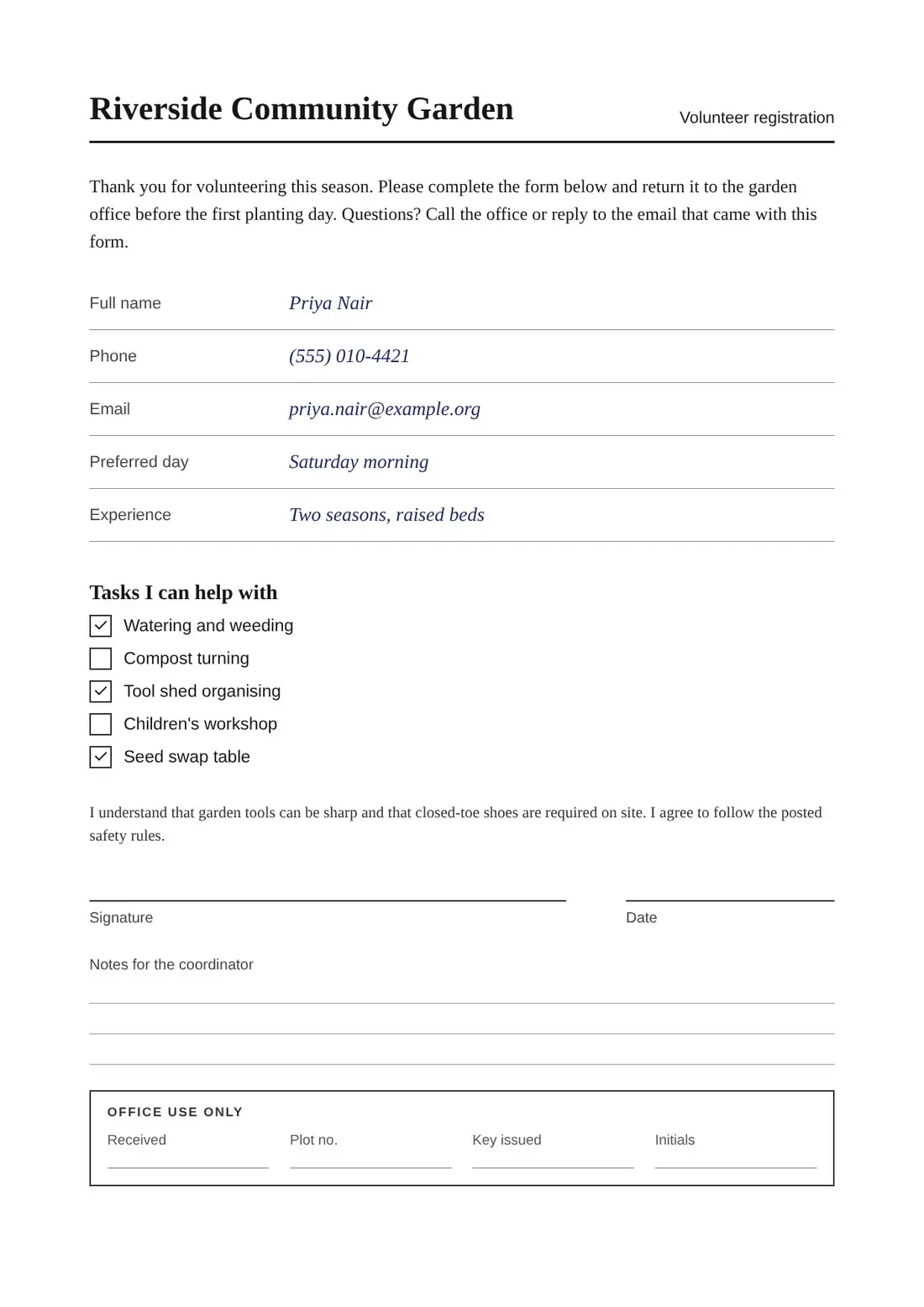
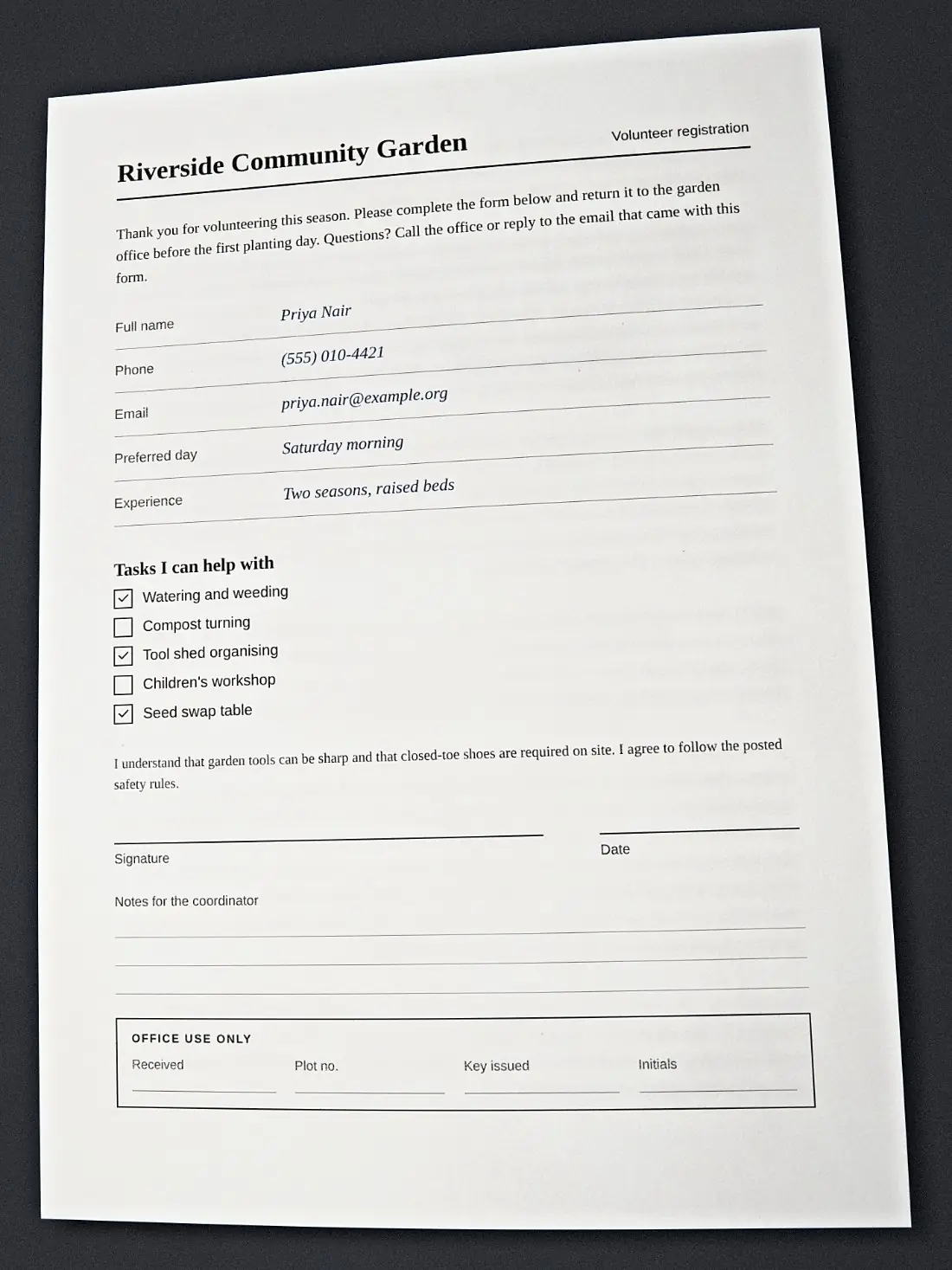
This guide covers the practical workflow, the settings that keep a signature legible, and the situations where you should use a different route. It assumes the document is yours to sign and the signature is yours or one you are authorised to apply.
Before you start
- Read the request. "Signed and scanned" means different things to different recipients. If they name a platform or say "e-signature", use that.
- Have the PDF saved on your device, and your signature ready: either a mouse, finger or pen to draw it, or a photo of your signature on white paper.
- Decide on colour. Blue or black ink on a scan is normal; grayscale is the usual choice for forms.
Step by step
- Load the PDF. Open ScanKit, stay on PDF → Photo and click Choose file. Multi-page PDFs load as separate pages; use the arrows beside the page counter to move between them.
- Go to Edit page. Select the Edit page tab. Signatures and handwriting are added here, on the clean page.
- Make the signature. Click Add signature or handwriting. In the Signature tab choose Draw and sign on the pad (Undo stroke and Clear let you retry), or Type to render your name, or Upload a photo of your signature. For uploads, adjust the Ink threshold or use Advanced clean-up to remove shadows, ruled lines and specks.
- Place and fit it. Click Place on page, drag it onto the line, and use Size, Rotation and Opacity to settle it. Hold it slightly smaller than the line space, as a real signature would be.
- Repeat where needed. Initials, dates or check marks for your own entries can be added the same way. Copy to all pages repeats a mark such as initials on every page.
- Remove stray marks. The Erase box, Erase brush and Erase lasso tools clean up your own additions. Undo steps back.
- Apply the scan look. Return to Final look. Under Capture style choose Flatbed scan. Pick the Subtle preset for a light, readable result. Tick Grayscale paper and Grayscale ink if you want black and white.
- Compare. Press Hold to compare and zoom in with the 100% button to confirm the signature is clear.
- Download. Click Download PDF and attach the file to your reply.
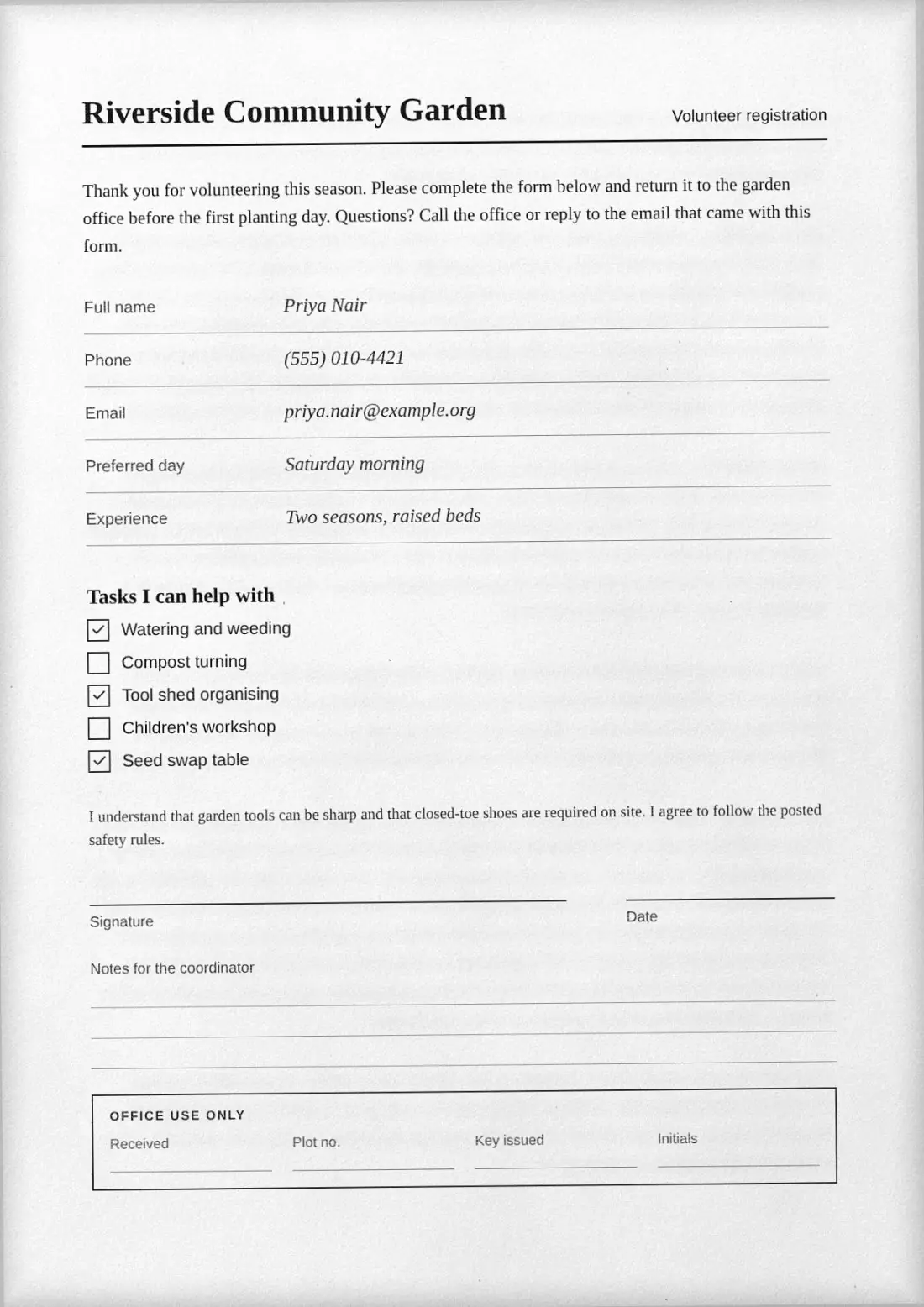
Settings that protect legibility
| Setting | Suggestion | Why |
|---|---|---|
| Resolution (DPI) | 150, or 200 for small print | Thin signature strokes need enough pixels |
| JPEG quality | 70 to 85 | Below roughly 50, strokes fray |
| Page tilt, noise, softness | Low | Heavy effects can make a signature or small print hard to read |
| Colour | Grayscale for forms, colour if asked | Keeps size down and matches typical scans |
If the file comes out too large for email, see how to reduce the file size of a scanned PDF.
A signature image is not a certified e-signature
This is the most important limit. A certified or platform e-signature (the kind produced by a dedicated e-signature service) typically logs the signer, a timestamp and sometimes identity checks, and can make later edits detectable. Dropping a signature image onto a page and flattening it does none of that. Some recipients accept a scanned signed copy for routine paperwork. Others, and some jurisdictions or document types, require a specific e-signature service, a wet-ink original, a witness or a notary. ScanKit does not provide legal advice; if you are unsure, ask the recipient what they accept, and use their process when they name one.
Other limits to know
- The output is image-based. The text is not selectable, searchable or readable by screen readers.
- Form fields in the original PDF become flat pixels. Fill them in before you load the file.
- Processing happens in your browser and files are not uploaded, but the PDF you email onward goes wherever you send it.
- Keep the original unsigned PDF and a copy of what you sent.
You get two free PDF downloads a day (up to three a week from one internet connection). Unlimited access is $4.99 / month through PayPal, renewing monthly until you cancel in PayPal.
Responsible use. Sign only documents you are entitled to sign, using your own signature or one you are authorised to apply. Do not misrepresent a document’s origin or contents, and never apply someone else’s signature without permission. See the acceptable use policy.
Frequently asked questions
Can I sign a PDF and return it as a scan without a printer?
Yes. Place an image of your own signature on the PDF and export it with a scanned look. Check that the recipient accepts a signature image.
Will they accept it instead of a wet-ink signature?
That depends entirely on the recipient and the type of document. Ask them, and follow any process they specify.
Is this the same as an e-signature service?
No. An e-signature service records signer details and an audit trail. A scanned-look PDF with a signature image does not.
Should I draw, type or upload my signature?
Draw if you have a touchscreen or pen, since it looks most natural. Upload a clear photo of your real signature on white paper if you prefer to match it exactly.
Can I save my signature for next time?
Yes. The Ink Studio has a Save to library option, so you can reuse the signature on later documents.
Sign and export your form
Add your signature, choose the scan look and download. Two PDFs a day are free.
Related: sign a document without printing and scanning, scanned PDF vs digital PDF and make a PDF look scanned.